“Our company wants to export Office 365 mailbox to PST for legal compliance and backup before removing the license. How do we download all email messages and other data from Office 365 to PST locally without losing data?”
Microsoft Office 365 keeps all your data in the cloud, but there are times when you need it out. Maybe an employee is leaving the organization, you are removing the license, need an offline copy of data, or maybe you need it for eDiscovery. The best solution for this scenario is exporting Office 365 data into a PST (Personal Storage Table) file.
Outlook PST file offers great benefits to users from saving data in the original structure to providing password encryption for advanced security. You can save Office 365 emails to PST using the free methods that we are going to discuss in this blog.
Reasons to Export Mailbox Data from Office 365 to PST
Users can export Office 365 mailbox data to PST to create a local backup, free up mailbox space, and other reasons, such as:
- Safe data backup: Safeguard your important emails and other items from data disasters.
- Cloud storage management: Archiving old data can free up some space for new emails.
- Offline accessibility: Manage, view, & search emails, contacts, calendars, etc., offline with Outlook.
- Smooth migration: Easily transfer data between different email clients or email providers.
- Employee leaving: In case of an employee leaving the organization, taking backup of their account’s data into PST is recommended.
Methods to Save Office 365 Emails as PST
You can save your Office 365 emails to PST using eDiscovery and Outlook’s built-in feature. The following are the steps for both methods:
Method 1. Export Office 365 mailbox to PST with Admin Center’s eDiscovery
The following are the steps to export Office mailbox to PST using eDiscovery. Execute them carefully:
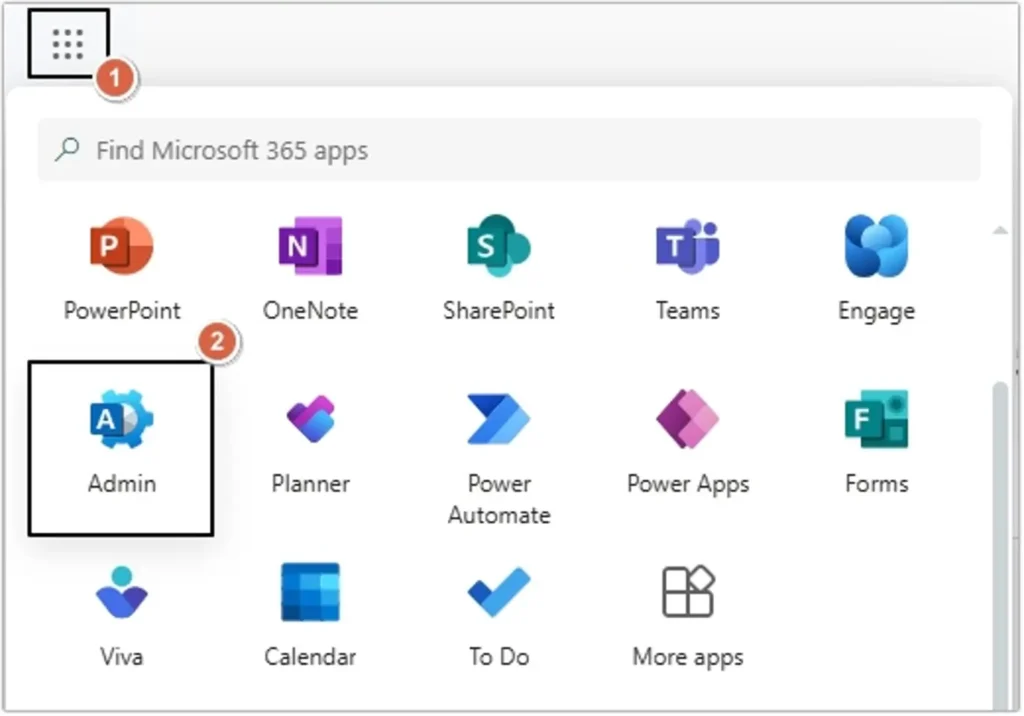
- Login to Office 365 account and go to Admin Center.
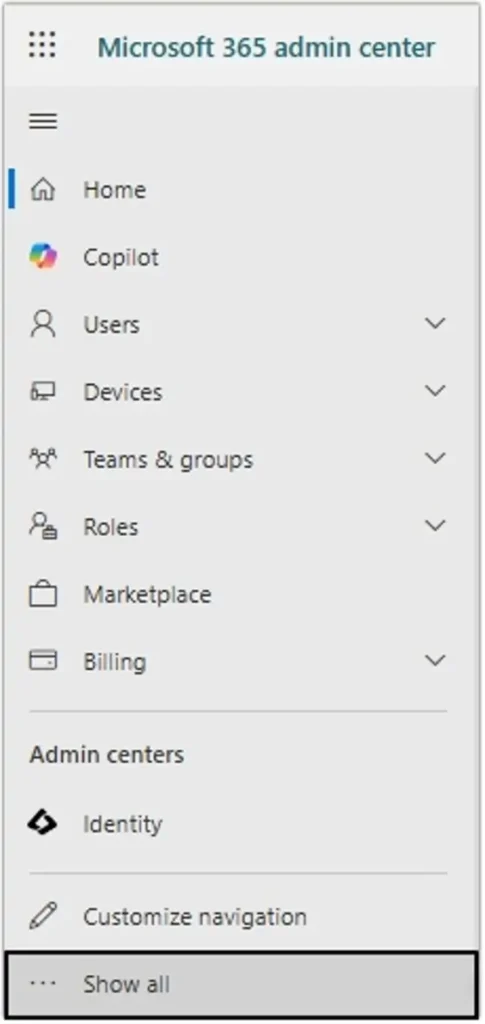
- Click on Show all.
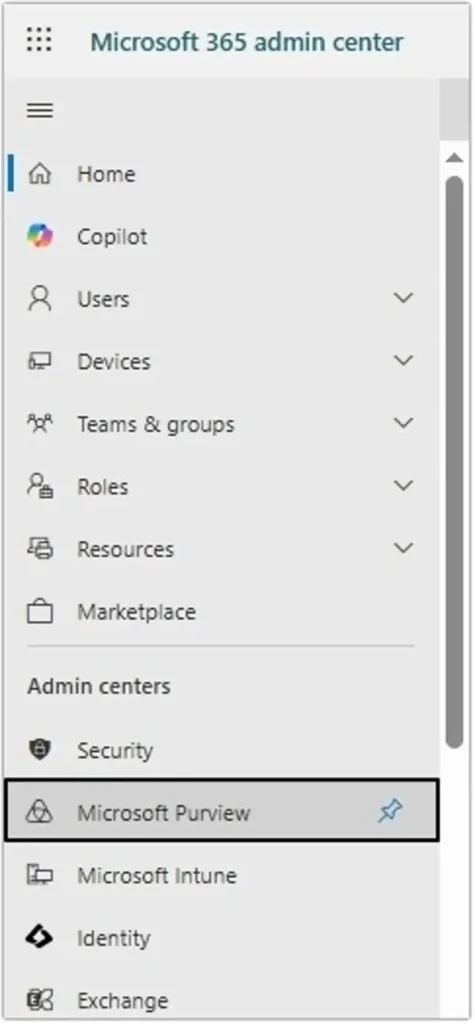
- Click on the Microsoft Purview option.
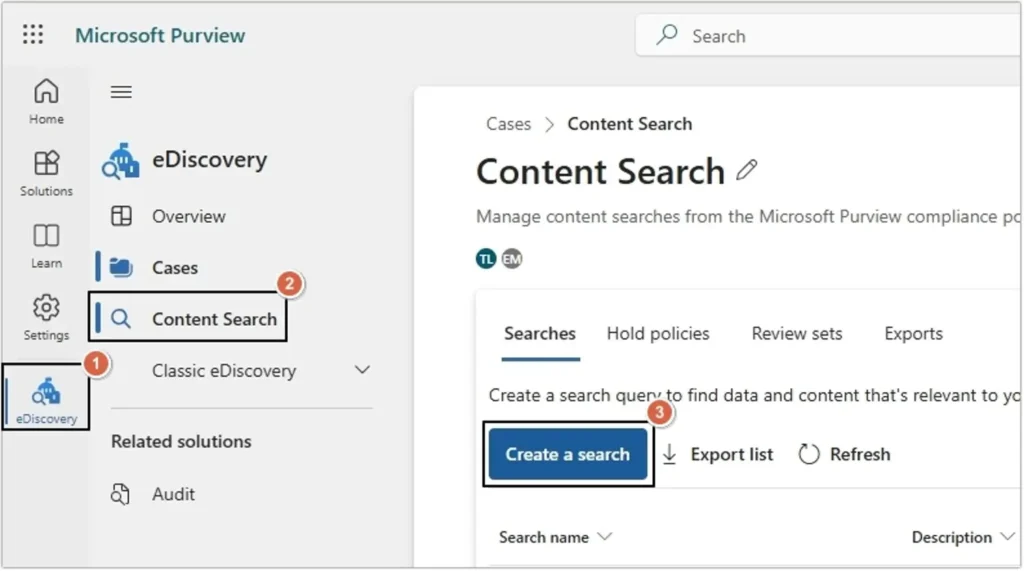
- Now, tap on eDiscovery >Content Search >Create a search.
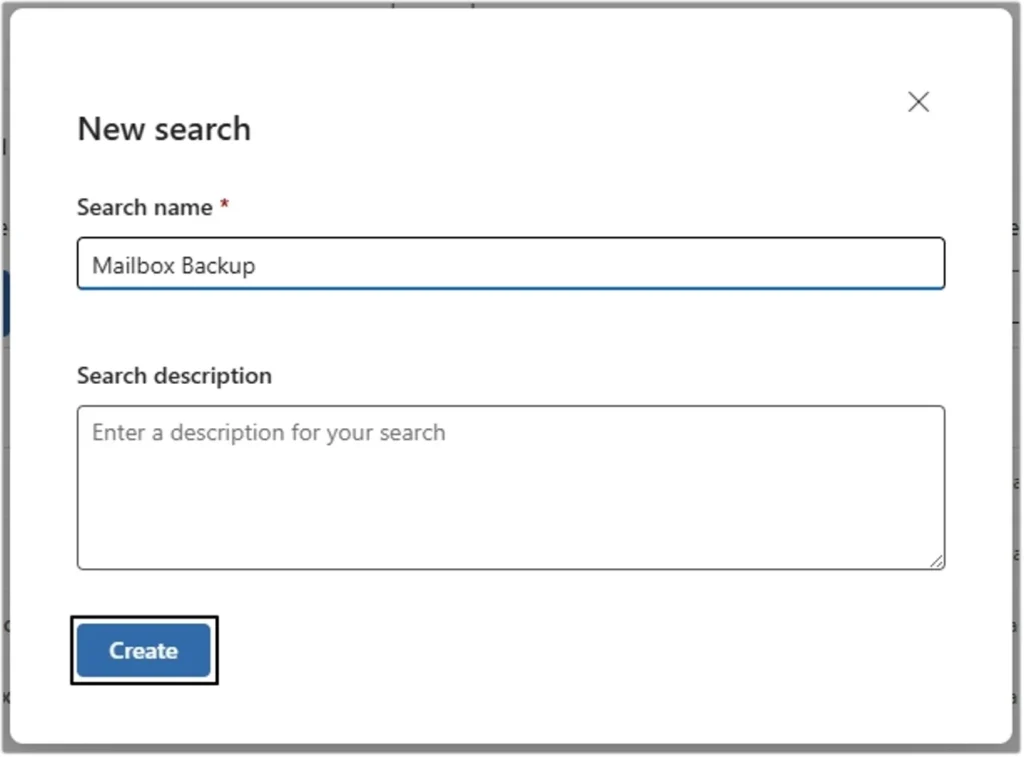
- Provide Search name and Search description (if needed), then click Create.
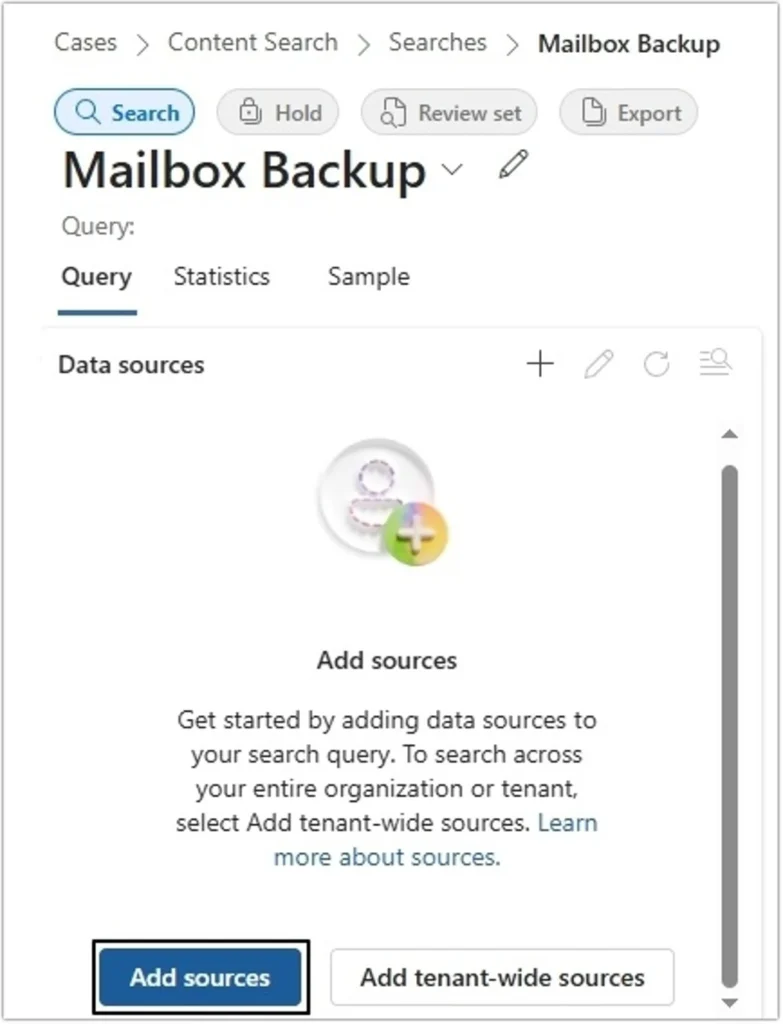
- Now, click Add Source.
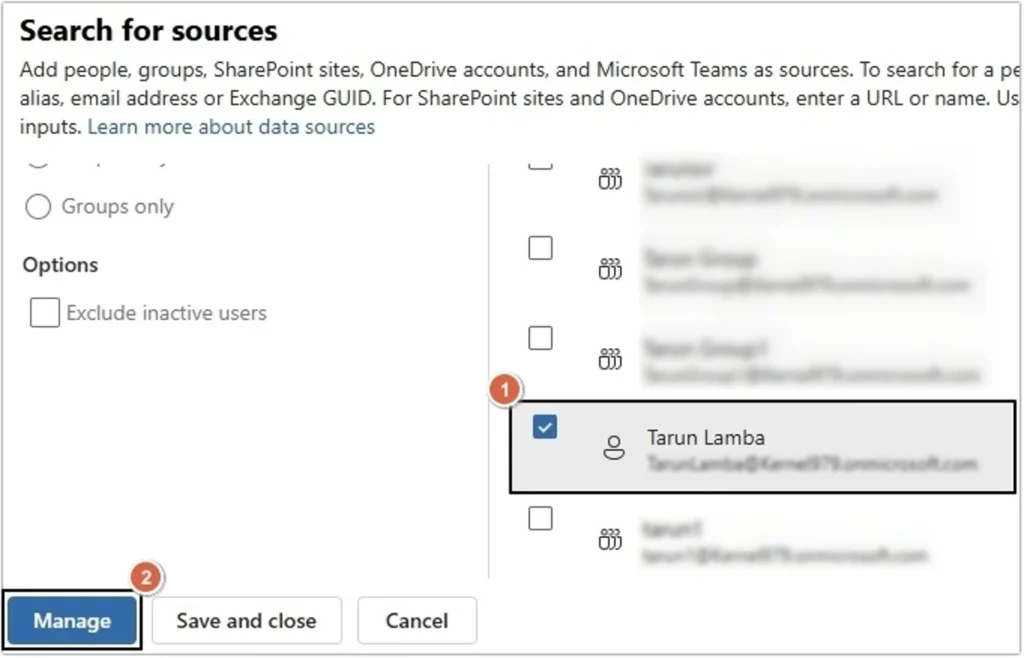
- Search for the user mailbox and select it, then click Manage.
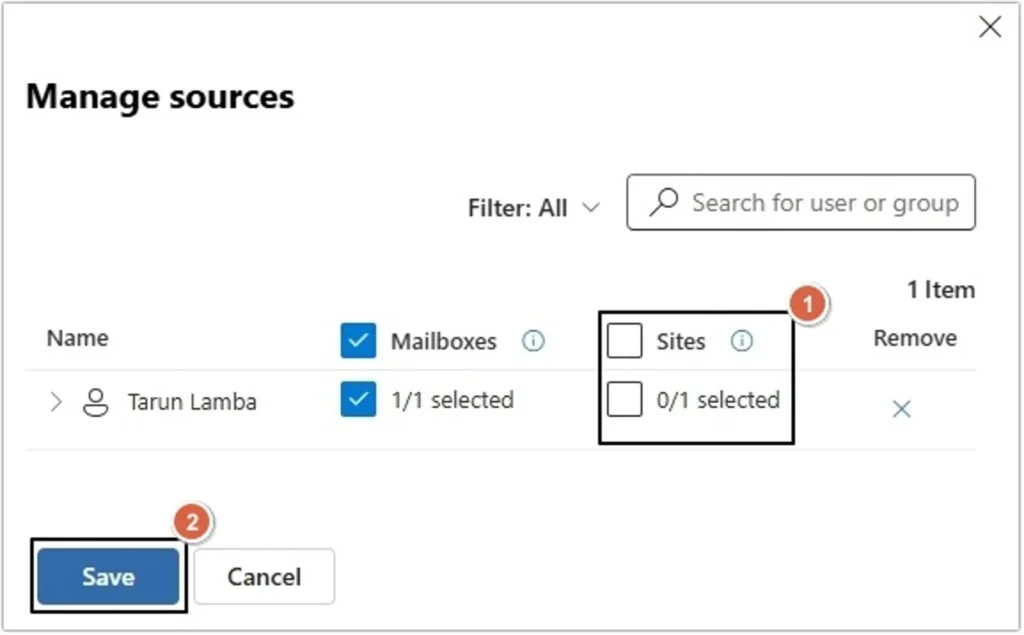
- To avoid backing up SharePoint data, unselect Sites, then click Save.
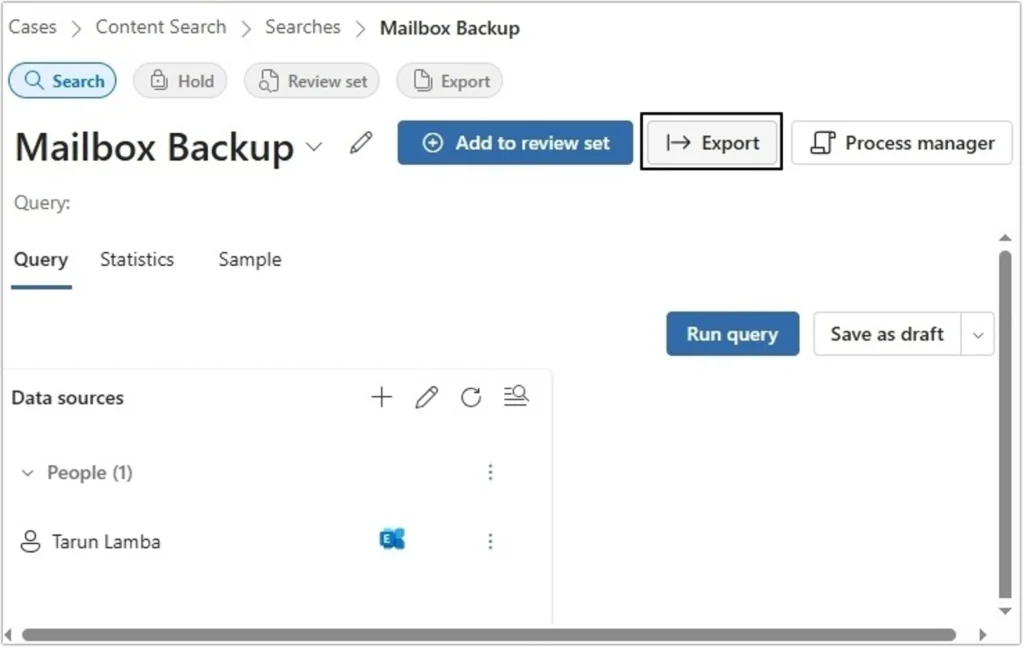
- Once the mailbox is added, click on Export.
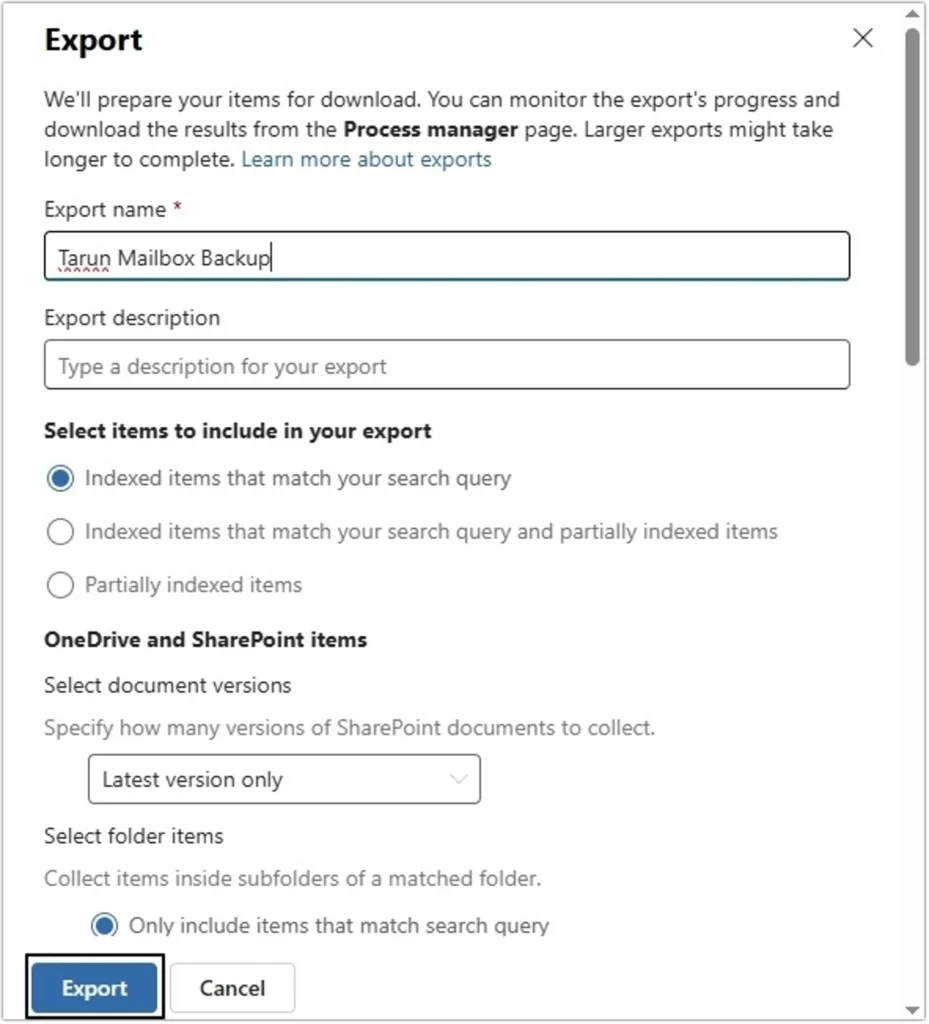
- Provide Export name, Export description and other necessary details and click Export.
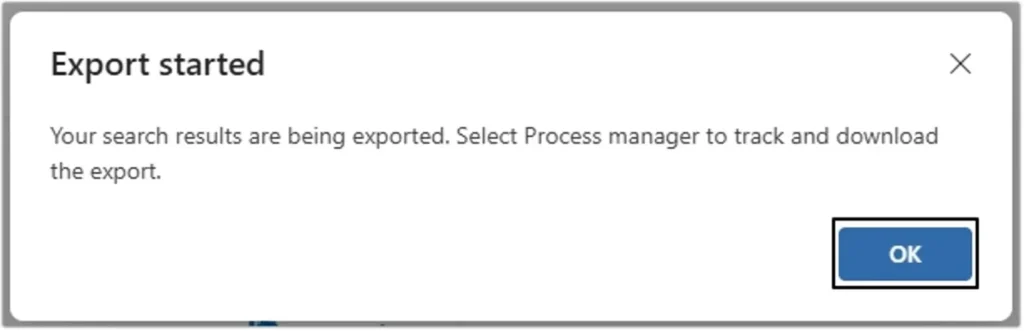
- Export will start shortly, click OK.
- Click on Process manager to check progress.
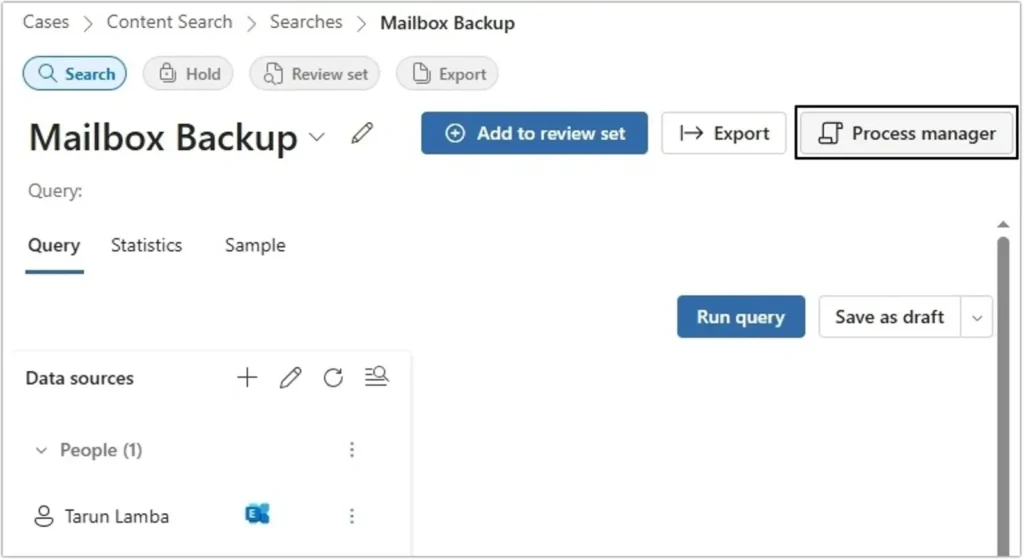
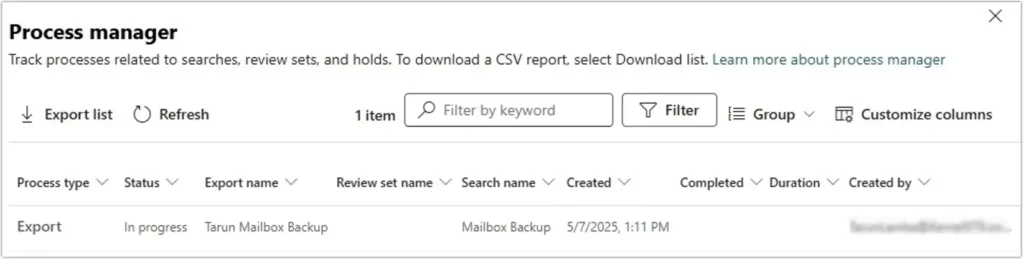
- You can check the progress under Status. Once completed, click on it.
- Now, select the files to download, then click the Download button.
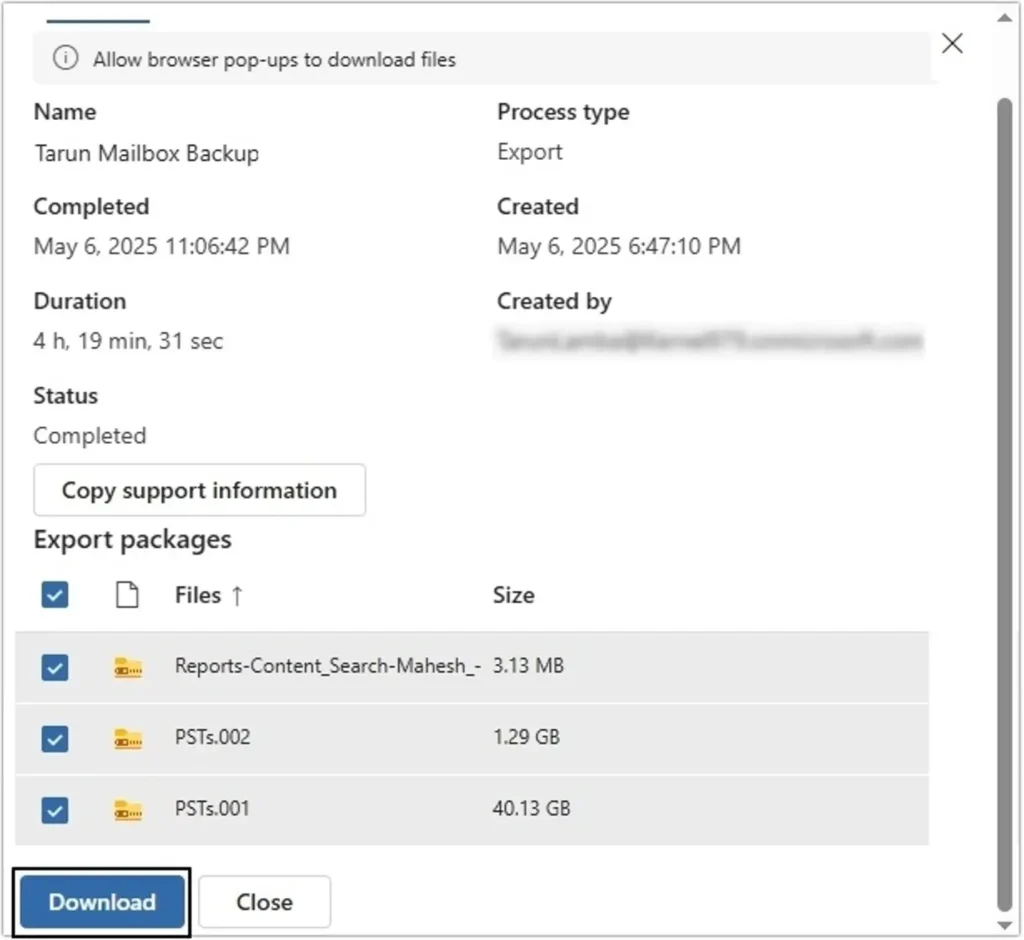
In this way, you can save Office 365 emails into PST using Admin Center’s eDiscovery.
Method 2. Using Outlook to Export Office 365 Mailbox to PST
Another method to export Office 365 data can be performed by configuring the Office 365 account in Outlook and using the in-built Import/Export Wizard to save data locally. This method needs to be carried out in two different parts. Here are the detailed steps for each part:
Part A. Configure Office 365 Account in Outlook
- Launch Outlook on your system and go to File >Add Account.
- Enter your Office 365 account email address and click Connect.
- Enter password of your Office 365 account and click Sign in.
- You’ll receive a confirmation message once your account is configured.
Part B. Export Office 365 Emails via Import/Export Wizard
- In Outlook, go to File >Open & Export >Import/Export.
- Choose Export to a File from the available options and click Next.
- Choose Outlook Data File (.pst) and hit Next.
- Select the folder to export from the Office 365 mailbox and click Next.
- Click Browse to provide the saving location and click Finish.
Conclusion: How to Save Office 365 Emails as PST
When you carry out the manual methods to export Office 365 mailbox to PST file, it can be time-consuming and prone to errors. Moreover, it lacks flexibility that makes it complex for users to handle large Office 365 mailboxes. You can opt for a professional Office 365 backup tool to export Office 365 emails to PST instead of relying on manual methods. You will get smart filtering options along with other benefits to save data with complete precision.