Encrypted PST files are great for storing confidential data, but they may cause issues if you forget the password. However, Outlook allows you to remove a password from a PST file depending on the Outlook version you’re currently working with. You can either remove the password with the help of Outlook or use pst19upg.exe for an advanced approach. Learning the reasons, effective methods, and the risks associated with removing password from PST files will help you make a safe move.
What are common reasons to remove passwords from PST files?
There are many scenarios where users need to remove passwords from their PST files. These scenarios can be:
- Forgotten password– One of the most common reasons why passwords are removed from PST files is because it got lost or is forgotten by users.
- File migration– Compatibility issues can occur when migrating data to a new email client or a new system due to password-protected PST files.
- Received encrypted PST files– Maybe you received an old PST file from someone, or you found an old PST archive that you don’t remember the password of.
- Constant password prompt– Constantly getting prompted for a password can be frustrating, especially when you’re doing something important.
Manual ways to remove a password from a PST file
There’s no one-stop solution that can remove passwords from PST files; however, users can try some workarounds. There are two manual workarounds to help users remove passwords from PST files. While the pst19upg.exe requires technical knowledge, non-technical users can also use Outlook to easily decrypt their PST files.
Method 1. Using pst19upg.exe to remove the password from PST
There’s a tool developed by Microsoft Outlook called pst19upg.exe that can easily remove the password from PST files. However, users need to have some technical knowledge to run this utility safely. The steps for this method are:
Note: This tool is available to use for 2003 and previous versions of ANSI PST files and isn’t very compatible with the newer versions.
- Close all instances of Outlook that may be running in the background and take a backup of the password-protected PST file.
- Now launch ScanPST.exe utility on your system and open cmdlet Command prompt.
- Find where your PST files are saved and copy the location path.
- Paste the location of PST files in the command prompt and hit Enter. Running this command will create a copy of PST file with the name of filename.psx.
- Enter pst19upg.exe and the file name given above in the command prompt and press Enter.
- Your PST file will get decrypted successfully.
Method 2. Remove password from PST files using Microsoft Outlook
Microsoft Outlook offers an easy way to remove passwords from Unicode PST files. The steps for this process are:
Note: This method is suitable for users who remember their old PST password.
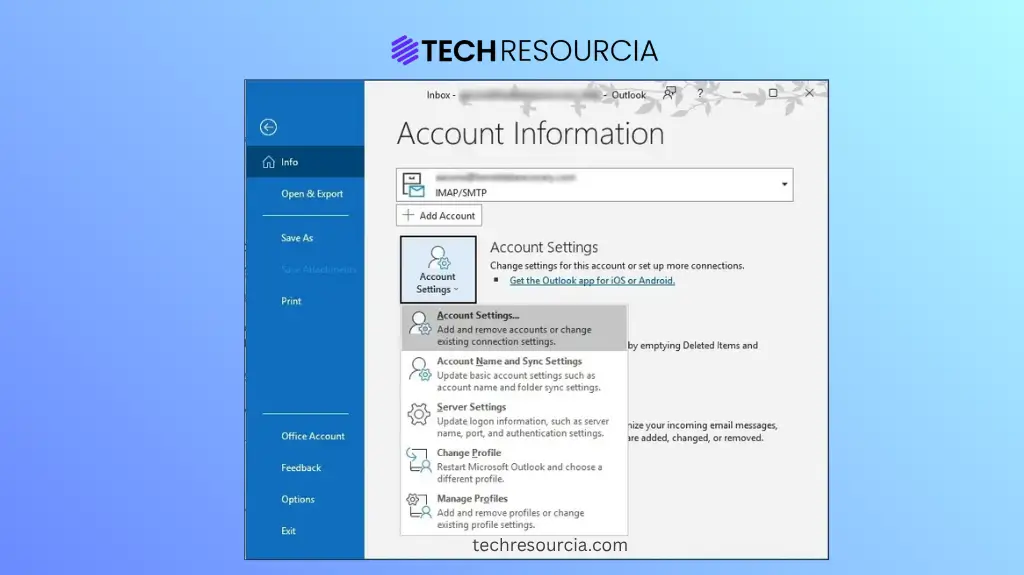
- Open the Outlook application and go to File > Account Settings > Account Settings.
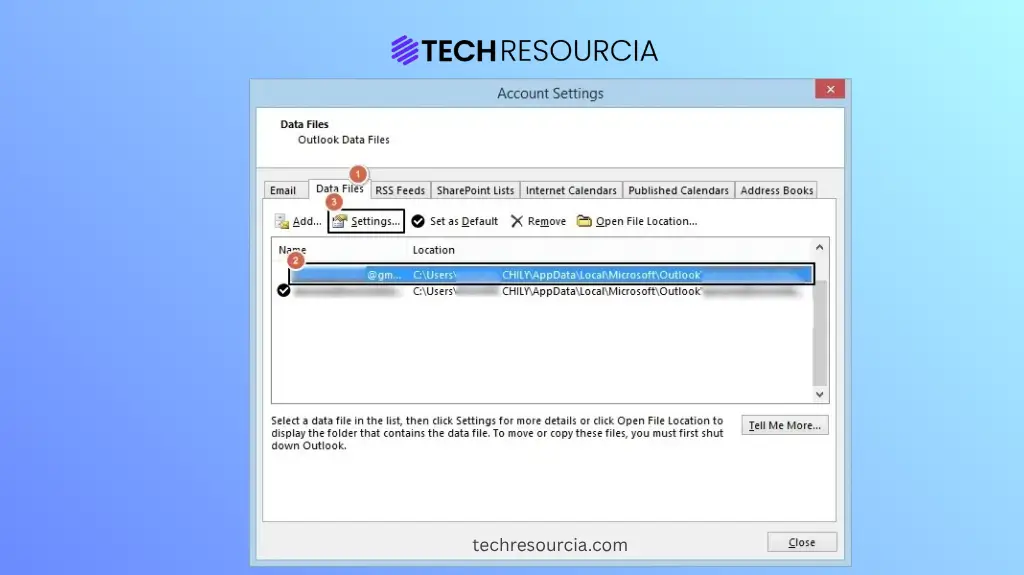
- Click on Data file tab in the Account Settings window and select the PST file to decrypt.
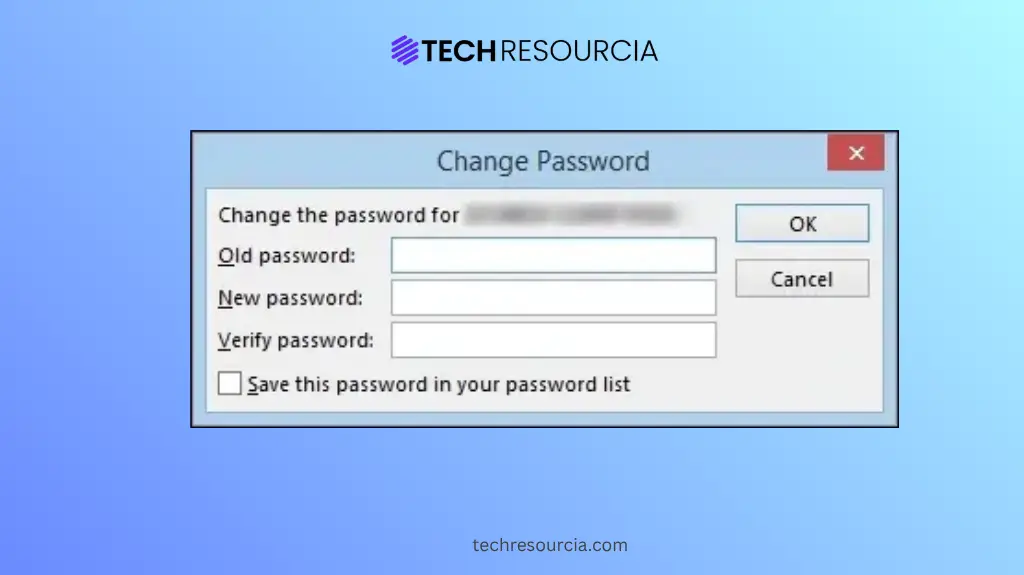
- Now, click on Settings > Change Password to open the prompt window.
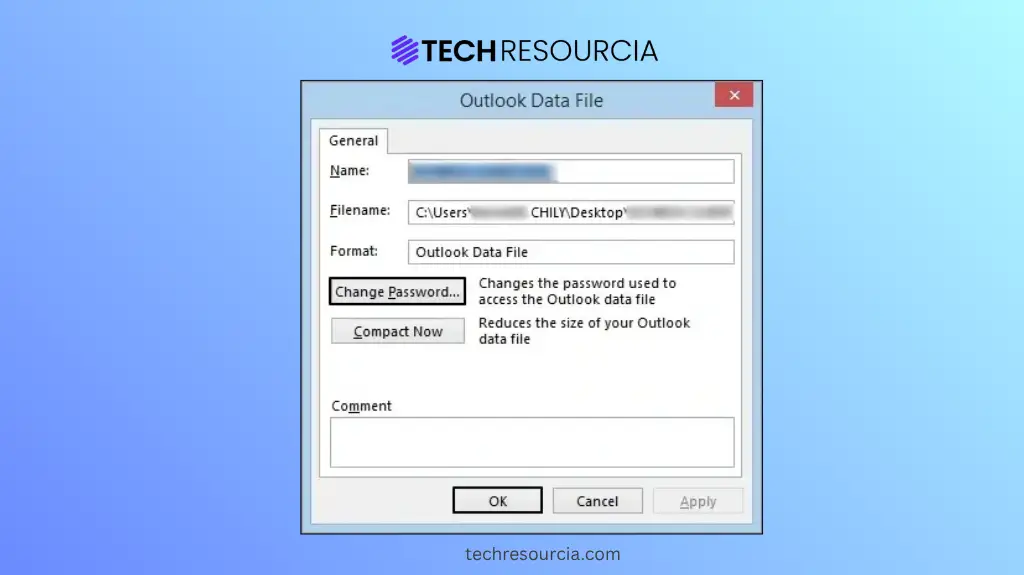
- Enter Old and New password and Verify the new password and then click on OK.
Safest method to remove password from PST files
Each of the given methods above has certain limitations and there is no direct way to remove passwords from PST files. This is why you need a reliable PST Password Recovery tool. Experts recommend using Recoveryfix PST Password Recovery to recover lost or forgotten PST passwords without harming your file’s integrity. Use this tool to unlock your PST file in simple steps and remove the password completely if you want. The best part is that with its beginner-friendly interface and wide compatibility with PST formats and Windows OS, this tool is ideal for IT admins and beginners alike.
Preventive Measures to Secure Outlook PST Files
Certain steps can be taken to secure Outlook PST files and prevent corruption. Password isn’t the only way to secure PST file data; here we’ll explore other measures to help you protect your data.
- Backup PST regularly: Follow the 3-2-1 backup rule, which suggests creating three copies of PST files, saving two onsite and one at an offsite location to back up your data.
- Manage Oversized PST files: Keep a check on PST file size with the help of the Compact Now feature of Outlook. Oversized PST files can cause issues with Outlook’s functionality. Make sure to keep your PST files under the 50GB limit.
- Store PST files locally: Don’t store your PST files on network drives, as your data can become inaccessible during maintenance or outage.
Conclusion
Adding a password to PST files is a wise decision if sharing sensitive data; losing this password can mean losing access to important data. If you’ve forgotten your data and want to remove the password from PST files, choosing the right method is necessary. Try the methods given above and see which one works the best for you.
People also ask
A. Simply open Outlook and go to File > Account Settings > Account Settings. Then click on Data File > Settings > Change Password.
A. Yes, with the help of a professional password recovery tool, users can easily recover the password of an old PST file.